
Instead of repeatedly checking job boards and reconstructing recruiter conversations, use a swipe to save radiology job workflow: save relevant positions, verify the details, track applications, and reconcile the final contract with your requirements. RadBoard aggregates 5,000+ radiology positions from 20 sources; use its search and swipe-to-save features for discovery, then keep application and contract decisions in your own tracker.
- RadBoard suits radiologists who want aggregated job search and swipe-to-save discovery; verify employer terms before applying.
- The swipe to save radiology job workflow connects saved positions, application tracking, interviews, and contract review.
- Keep saved jobs separate from submitted applications; record the submission date and recipient.
- Before signing, reconcile duties, call, compensation terms, malpractice coverage, and start-date conditions in writing.
Why this matters
RadBoard is best for radiologists who want aggregated job discovery with swipe-to-save shortlisting. Its value is bringing positions together. Saving a listing does not establish clinical fit, submit an application, or confirm an employer's terms.
For your 2026 radiology job search, separate discovery from commitment. Every transition needs evidence: an employer confirmation, a submitted application, an interview summary, or a reviewed agreement. Without that separation, a promising listing and a verified offer occupy the same mental space.
The workflow below uses search and saving on the platform, plus a tracker you control. It does not depend on an automated connection between your saved jobs, email, calendar, or employer application systems.
Before you start
- Search access and application materials: Have access to the platform's search and saving features, a current CV, your training and certification details, license information, and an email address you monitor. Obtain permission before sharing reference contact details.
- A private tracker and calendar: Use a spreadsheet or document for application status, recruiter contacts, questions, and deadlines. Keep sensitive credentialing documents separate from general search notes and send them through the recipient's designated secure process.
- The gotcha: a save is not an application. Track the original source, employer, practice location, and submission route. Before sending your CV, confirm whether a recruiter or employer already has your application for that position.
Search criteria and saved-job queue
Start your 2026 search by defining what makes a position worth investigating. Use the following instructions as a personal screening process, not as names of platform filters or buttons.
- Write your non-negotiables. Specify subspecialty scope, acceptable geography, onsite or remote work, shift pattern, call obligations, employment arrangement, and intended start window. Separate requirements from preferences so an attractive secondary feature cannot override a deal-breaker.
- Search for the clinical role first. Begin with the work you want to perform, then narrow by setting and schedule. For example, search for abdominal imaging before assessing whether a position's general coverage duties fit your goals.
- Read beyond the title. Identify stated modalities, procedures, general diagnostic coverage, teaching, and administrative responsibilities. Mark missing information as a question; do not treat an omission as confirmation that the duty is absent.
- Use swipe-to-save for plausible matches. Save positions that satisfy your stated requirements or need a specific clarification. Reject clearly unsuitable roles rather than adding them to a queue you will need to clean later.
- Create 1 tracker record per distinct position. Capture the employer or group, location, source reference, contact, date reviewed, reason saved, and next action. Compare apparent duplicates before opening another record.
Expected result: Your saved-job queue contains positions with a stated reason for consideration. Each tracker record identifies the next question or action, not just a job title.
A useful reason saved is concrete: subspecialty reading with an acceptable shift pattern, pending confirmation of weekend coverage. An unhelpful reason is simply interesting. The first tells you what to verify; the second sends you back through the listing.
Application tracker and employer verification
Build the tracker around decisions, not activity volume. The field names below are suggested labels for your own spreadsheet; they are not claims about built-in platform settings.
- Add decision fields. Create columns named Status, Next action, Action date, Contact, Last verified, and Open questions. Keep the original listing reference alongside them so you can distinguish advertised details from later confirmations.
- Assign a factual status. Use Saved, Verification needed, Applied, Interviewing, Offer review, Signed, or Closed. Move a record to Applied only after you have actually submitted the application.
- Verify the position with the hiring contact. Confirm the employing entity, clinical sites, expected case mix, shift time zone, call structure, and application route. Ask who can answer questions the recruiter cannot resolve.
- Check representation before submission. If a recruiter is involved, clarify which position the recruiter intends to submit you for and whether you have already applied directly. Keep a written record of that exchange.
- Submit through the confirmed route. Tailor your CV and message to the role's actual duties. Record the submission date, recipient, and materials sent, then add the agreed next action to your calendar.
Expected result: Every active application has a confirmed destination, submission record, contact, and next action. A saved role cannot silently become an application in your tracker.
Status definitions that prevent false progress
These are workflow states, not competing products. Use each state only when its evidence exists.
| Status | Best for | Advantage | Limitation | Evidence needed to advance |
|---|---|---|---|---|
| Saved | Initial screening | Preserves a plausible lead | Details remain unverified | Requirements checked against the listing |
| Verification needed | Resolving missing terms | Makes uncertainty visible | Requires employer follow-up | Answer from the appropriate contact |
| Applied | Tracking submissions | Separates action from intention | Submission does not establish fit | Submission date and recipient |
| Interviewing | Testing clinical and operational fit | Allows direct questions | Verbal answers need documentation | Interview notes and unresolved questions |
| Offer review | Comparing written commitments | Exposes gaps between discussions and documents | Requires careful review | Reviewed agreement and incorporated changes |
| Signed | Recording the completed agreement | Establishes a document checkpoint | Does not complete onboarding | Fully executed agreement and outstanding conditions |
Interview evidence and offer comparison
Use interviews to test the work behind the advertisement. For a 2026 start, ask the employer to distinguish the current operating model from planned changes that would affect your role.
- Prepare questions from your open issues. Ask about actual reading responsibilities, cross-coverage, procedures, call escalation, staffing, and support. For remote work, clarify workstation responsibilities, technical support, and where you are expected to perform the work.
- Request workload context. Ask how the employer measures productivity and how modality mix, procedures, teaching, and nonclinical duties affect expectations. Do not compare productivity targets without understanding the work included.
- Record answers by source. Note who answered and when. Separate a recruiter summary from a clinical leader's explanation and from an obligation stated in an agreement.
- Compare offers using identical categories. Review schedule, clinical scope, compensation structure, leave terms, benefits, malpractice responsibilities, termination provisions, and restrictive covenants. Leave unanswered categories visibly unresolved.
- Send a written clarification summary. State your understanding of material terms and request correction or confirmation. Ask for important commitments to appear in the agreement or an expressly incorporated document.
Expected result: Your offer comparison distinguishes documented commitments from verbal descriptions. You can explain why a position fits without relying on the advertisement's headline.
Keep a separate note for culture observations: how directly the team answers questions, whether interviewers describe the same responsibilities, and whether you can speak with physicians doing comparable work. Record observations as observations, not established contractual terms.
Contract review and signature checkpoint
Do not move an offer to Signed because you accepted it verbally. The final checkpoint is the fully executed agreement, together with a clear record of unresolved onboarding conditions.
- Identify every governing document. Collect the proposed agreement, referenced exhibits, compensation plan, relevant policies, and amendments. Ask which documents control if their wording conflicts.
- Reconcile the agreement with your decision criteria. Check duties, locations, call, work schedule, compensation calculations, leave provisions, malpractice responsibilities, termination, and post-employment restrictions. Flag language that differs from the offer discussion.
- Obtain qualified contract advice. Have an attorney experienced in physician employment and the relevant jurisdiction assess legal obligations. Ask the employer to explain operational terms that remain unclear; legal review does not replace that clarification.
- Review the final version after revisions. Confirm that agreed changes appear in the document you will sign and that referenced attachments are present. Retain the final reviewed version separately from drafts.
- Sign and preserve the executed agreement. Obtain the version signed by the required parties. Record credentialing, licensing, privileges, background checks, and other stated start conditions as separate onboarding tasks.
Expected result: You have an executed agreement, a documented understanding of your obligations, and an onboarding checklist with named contacts.
Keep your 2026 search record separate from your credentialing file. The tracker should show outstanding tasks and owners, not become a repository for identity documents or confidential credentialing materials.
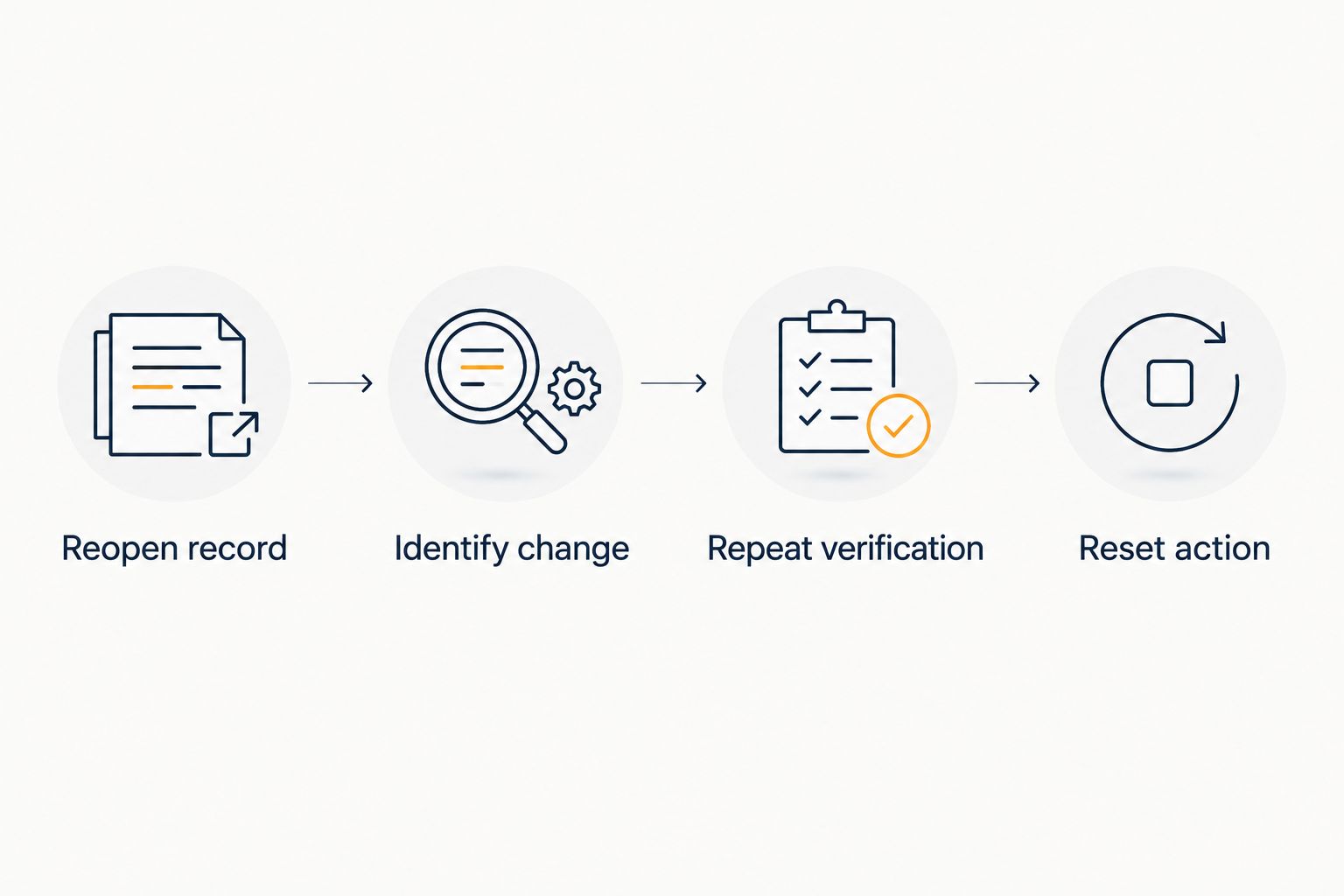
Variant: recheck a saved role when details change
For a longer 2026 search, use the same workflow when an employer changes a role's schedule, location, case mix, or other material terms. A previously suitable position needs another review when its underlying details change.
- Reopen the existing record. Preserve the earlier notes instead of creating a disconnected replacement.
- Identify the changed term. Record the new information, its source, and the date you received it.
- Repeat the affected verification. A changed clinical site warrants questions about duties and coverage; a changed shift warrants another schedule check.
- Reset the next action. Continue, request clarification, or close the record based on your requirements.
Expected result: A changed listing receives a fresh decision without losing the history of your application or recruiter contact.
Treat this as a manual review routine. Set your own calendar reminder rather than assuming saved positions will generate change notifications.
Troubleshooting
The same position appears through different sources
Compare the employer, clinical site, duties, and identifying details before treating listings as separate opportunities. Keep distinct source references under the same tracker record when the hiring contact confirms they describe the same position.
You saved the role but cannot confirm an application
Return the tracker status to Saved or Verification needed. Locate a submission confirmation or ask the designated contact before resubmitting; a saved listing alone is not evidence of an application.
The recruiter and physician describe different call expectations
Record the conflicting descriptions and ask who owns the final schedule decision. Keep the issue open until the employer provides a consistent explanation and the relevant written terms reflect your understanding.
The offer omits an important interview commitment
Ask for the commitment to be incorporated before signing. Do not mark the issue resolved because it appears in your interview notes or because someone says the agreement is standard.
The proposed start date depends on unfinished approvals
List each stated condition, responsible contact, and outstanding document. Coordinate with the employer's credentialing team before treating the proposed date as confirmed.
Customize your workflow
Use RadBoard for radiology job discovery, then expand your tracker around the decision your next role requires. A remote role needs equipment and support questions; a leadership role needs authority and protected-time questions; a partnership-track role needs written progression terms.
The benefit is a repeatable search record. The limitation is that saving positions does not verify employer statements or perform contract review for you. Keep those responsibilities explicit rather than adding more statuses that obscure the next decision.
Before your final 2026 signature checkpoint, use the guide to reading a radiology employment contract before signing to organize questions for your attorney and hiring contact.
FAQ
What is a swipe to save radiology job workflow?
A swipe to save radiology job workflow connects saved listings to verification, applications, interviews, offer review, and signature. Keep each stage separate and record the evidence needed to advance.
Does saving a radiology job submit my application?
Treat saving and applying as separate actions. Confirm the employer's application route and record the actual submission date and recipient before marking a position Applied.
What is RadBoard best for in a radiology job search?
RadBoard is best for aggregated radiology job discovery with search and swipe-to-save shortlisting. It aggregates 5,000+ radiology positions from 20 sources; verify role details directly with the hiring contact.
How should I track the same job listed by different recruiters?
Keep one record when the hiring contact confirms the listings describe the same position. Preserve each source reference and clarify representation before another recruiter submits your CV.
What should I confirm before a radiology job interview?
Confirm clinical scope, work locations, shift expectations, call, employment arrangement, and the hiring contact. Turn any missing details into interview questions rather than assumptions.
Can I rely on verbal promises when accepting a radiology offer?
Ask for material commitments to appear in the agreement or an expressly incorporated document before signing. Have qualified counsel review the final terms and any differences from your discussions.
Does a signed contract mean I can start clinical work?
A signed agreement does not replace the employer's stated onboarding, licensing, credentialing, or privileges requirements. Track those conditions separately and confirm readiness with the responsible contacts.
One last thing
Add a reason closed to every rejected or withdrawn position. Those notes turn your search history into a practical filter: repeated conflicts over call, clinical scope, or location show which questions belong earlier in your next search.