
Instead of rewriting your professional history for every radiology application, prepare your LinkedIn profile URL and a matching CV, then reuse them when an employer requests them. To connect LinkedIn profile to RadBoard searches in a practical application workflow, use the profile as supporting information—not as proof of account synchronization or a submitted application.
- To connect LinkedIn profile to RadBoard searches, use a manual profile-link workflow rather than assuming automatic synchronization.
- RadBoard is best for radiologists seeking a radiology job search platform that aggregates positions from multiple sources.
- Keep your LinkedIn profile, radiology CV, and employer application consistent; each serves a different purpose.
- Saving a position is not application confirmation. Check the employer’s submission requirements before recording completion.
Why this matters
RadBoard aggregates radiology positions from 20 sources. That makes it useful for finding opportunities, but finding a listing, saving it, and applying are separate actions.
RadBoard is best for radiologists who want a radiology job search platform that brings positions from multiple sources together. Its swipe-to-save feature supports shortlisting; your LinkedIn profile and CV support the next stage of the search.
For your 2026 applications, keep those stages distinct. A professional profile gives a reader context about your career, while the employer’s application determines what information you must submit.
This guide uses a manual profile-link workflow, not account synchronization. It does not depend on a LinkedIn import button, automatic CV transfer, or shared application status.
Before you start
- Prepare your materials: Have access to your LinkedIn profile, your current radiology CV, and the job listing you intend to pursue. Use a browser so you can copy and test your profile address.
- Choose your professional contact details: Decide which email address and telephone number belong in employer-facing materials. Keep confidential patient information out of profiles, CVs, and application notes.
- Check the application destination first: A saved listing does not establish where or how you apply. Read the employer’s instructions before spending time looking for a profile connection setting.
The non-obvious problem is the distinction between sharing a profile and authorizing an integration. Pasting a LinkedIn profile URL shares a reference; it does not authorize account access or transfer your employment history. Do not enter your LinkedIn password into an application text field.
Profile URL preparation
Start with a profile link that opens the right professional identity. A correct address matters more than a polished link label.
- Open LinkedIn in your browser and visit your own profile. Confirm that the page shows your name and professional history, rather than a search result or another person’s profile.
- Copy the profile address from the browser’s address bar. Store it in a private application note alongside your professional contact details.
- Open the copied address in a separate browser window. Check the destination, and use a signed-out window to see what someone without your session can access.
- Review the information visible to that reader. Do not assume the recruiter sees everything you see while signed in.
- Correct inaccurate professional details before reusing the link. Check your current position, training, subspecialty description, and contact information against your CV.
Expected result: You have a tested profile URL that leads to your professional profile, with a clear understanding of what an outside reader can see.
A visibility restriction is not automatically a reason to make your entire profile public. Share only what you intend to disclose, and provide required application information through the employer’s designated process.
For a 2026 search, distinguish your current role from your intended next role. Wanting a subspecialty-only position does not make subspecialty-only practice your current employment history.
Radiology application materials
Build a reusable application packet before choosing where to paste the profile link. Use 3 documents: your CV, a short professional summary, and a private application tracker.
- Review your CV for accurate employment dates, training, professional credentials, and contact details. Use your actual status rather than the status you expect to hold later.
- Draft a short summary describing your current role, relevant subspecialty experience, and desired work arrangement. Treat this as source text to adapt, not a universal cover letter.
- Compare the summary with LinkedIn. Resolve discrepancies in job titles, training dates, or descriptions before an employer encounters them.
- Create a private tracker with the employer, position title, listing reference, application destination, submission date, and next action. Keep the tested profile URL in your reusable materials rather than repeatedly searching for it.
- Separate preferences from qualifications. Record your preferred schedule and location without presenting them as established arrangements with an employer.
Expected result: You can retrieve accurate application information without reconstructing your history each time, while preserving the detail an employer requests.
Choose the right supporting material
LinkedIn and a CV are complementary, not interchangeable. Use the employer’s requirements to decide what belongs in each submission.
| Supporting material | Best for | Advantage | Limitation |
|---|---|---|---|
| LinkedIn profile URL | Giving a recruiter professional context when requested | Lets the reader view your professional profile | What the reader sees depends on profile access and visibility |
| Radiology CV | Supplying detailed professional history | Gives you a document to review and tailor | Requires a separate update when your history changes |
| Application tracker | Managing your own follow-up | Separates saved, started, and submitted work | Does not confirm receipt by an employer |
Use the CV for required professional detail and the profile URL for supplementary context. Neither replaces an employer’s questions, required documents, or submission instructions.
Job shortlist and application destination
Use RadBoard’s radiology job search platform to identify positions, then evaluate each listing before beginning an application. The benefit is a focused shortlist; the limitation is that a saved opportunity still needs a separate application check.
- Search for positions that match your clinical interests and work preferences. Describe the subspecialty, location, and schedule you actually want rather than starting with an unrestricted search.
- Use swipe-to-save to keep positions you want to review. Saving is a shortlisting action, not evidence that an employer received your details.
- Read each listing for clinical scope, work arrangement, qualification requirements, and application instructions. Record unanswered questions instead of treating missing details as favorable terms.
- Identify the stated application destination or contact. Follow that route rather than assuming the discovery platform and employer share application records.
- Add the position to your tracker with a status that reflects your action: saved, reviewing, started, or submitted. Reserve submitted for a completed employer-facing application.
Expected result: Every shortlisted position has an identified next action, and your tracker distinguishes interest from actual submission.
Use the same distinction throughout your 2026 search. If you have only saved a position, the next action is to review it—not to follow up as though you already applied.
The broader saved-job-to-contract workflow provides a useful next step once your application materials are ready.
Profile sharing and submission checks
Share your LinkedIn profile only where the application requests or permits relevant professional links. Do not substitute a URL for required answers.
- Open the employer’s application process and read the instructions before entering information. Identify required documents and any request for a professional profile.
- Paste your tested LinkedIn URL into the designated professional-profile field when one is provided. If no suitable field exists, follow the application instructions without forcing the link into an unrelated answer.
- Attach or provide your CV as instructed. Review the selected file before submitting, especially if you maintain versions for different career paths.
- Review any prefilled information. Check employment dates, training history, contact details, and credentials rather than assuming imported text is correct.
- Complete required questions directly. A profile link is not a substitute for information the employer specifically asks you to enter.
- Finish the submission process and retain any confirmation provided. Record the date and next action in your tracker only after completing that process.
Expected result: The employer receives the requested application materials, your profile link serves its intended supporting role, and your records reflect the submission accurately.
Use 4 checks before submitting: identity, credentials, attachments, and destination. These are review steps, not a guarantee that the employer has accepted or evaluated your application.
The sequence is straightforward: prepare the profile, review the CV, follow the application, then record confirmation. Skipping the final check leaves you with an uncertain application status.
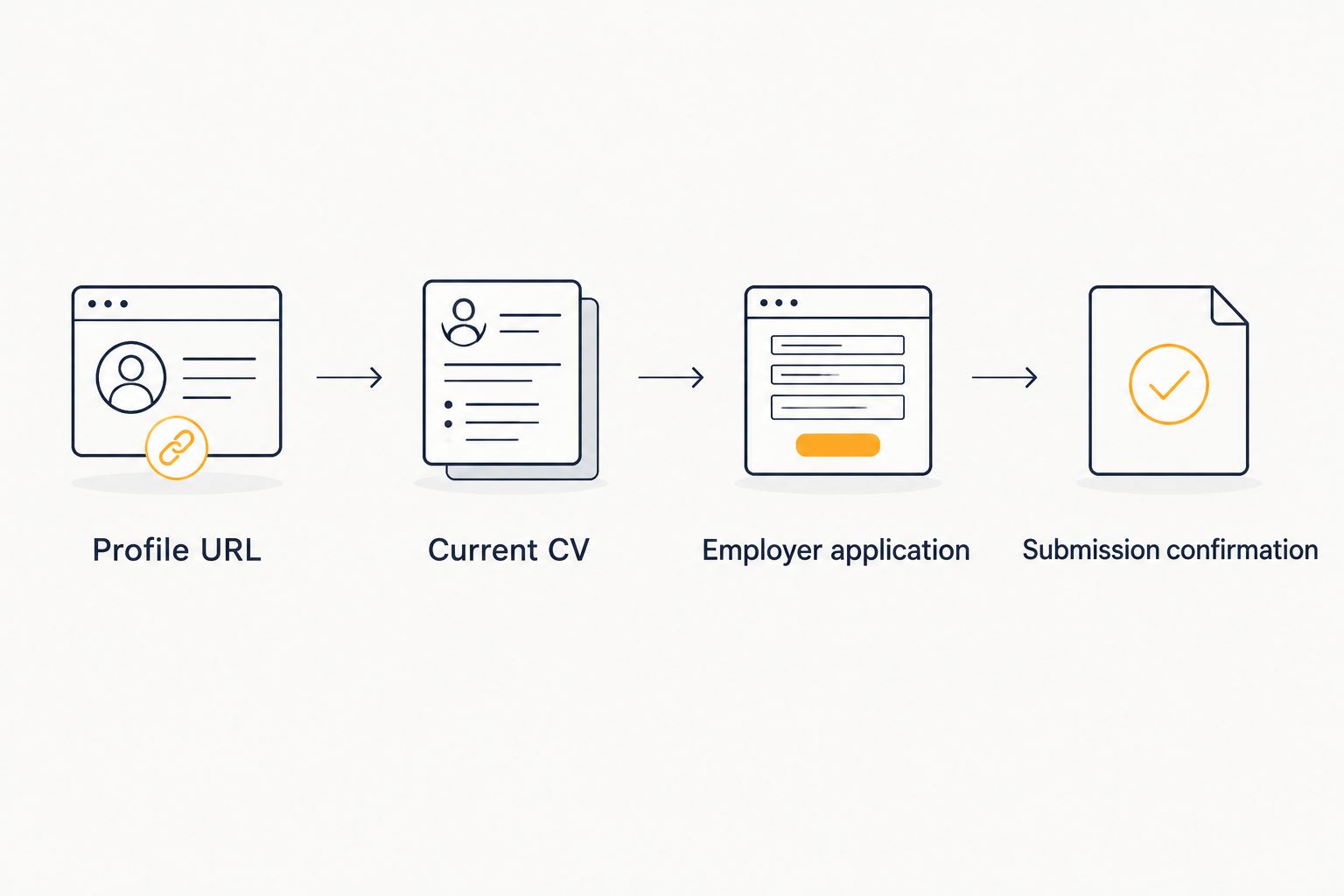
Repeat the workflow when your professional history changes
A profile-link workflow also works when you change roles, finish training, or revise your search direction. The key is to update the underlying information rather than assuming a shared link updates every application.
- Correct your master CV first. Use verified dates and accurate descriptions of your professional status.
- Update LinkedIn to reflect the same facts, then test the profile link again.
- Review applications in progress for outdated attachments or answers. Replace information only through the employer’s permitted process.
- For submitted applications, use the designated contact or update process when a material correction is necessary. Do not assume editing LinkedIn changes a previously submitted CV.
Expected result: New applications use consistent information, and changes to existing applications follow the employer’s process.
For your 2026 tracker, keep a clear distinction between a new application and an update to an existing one. Do not create a duplicate submission merely to replace a document unless the employer directs you to do so.
Troubleshooting
The profile link opens the wrong page
Return to your own LinkedIn profile and recopy the browser address. Test it separately before replacing the link in your reusable notes; a search-results address is not a reliable substitute for your profile.
The recruiter cannot see the expected information
Check the profile in a signed-out browser window and review your visibility choices. Provide required professional history through the employer’s application process rather than relying on the recruiter’s access to LinkedIn.
There is no suitable place for a LinkedIn URL
Complete the application without forcing the link into an unrelated field. Your objective is a complete, accurate application—not a profile link at any cost.
LinkedIn and the uploaded CV disagree
Compare both with your verified professional history and correct the inaccurate material. If you already submitted an application containing a material error, use the employer’s designated correction process.
A saved job has no application confirmation
Treat the job as saved, not submitted. Return to the listing, follow its application instructions, and record submission only after completing the employer-facing process.
Customize your workflow
Adapt your professional summary to the role while keeping your underlying history unchanged. An academic application and a clinical practice application can emphasize different experience without contradicting each other.
For a remote role, prepare questions about clinical scope, scheduling, and work arrangements. For an onsite role, prepare questions about practice location and responsibilities; neither set of preferences establishes the terms of an offer.
Keep the same factual foundation across your 2026 applications. Change emphasis, not credentials, dates, or employment history.
FAQ
How do I connect my LinkedIn profile to RadBoard for applications?
Use a manual profile-link workflow: prepare your LinkedIn URL, find a suitable position, and share the URL wherever the employer requests it. This is a way to coordinate your search materials, not a claim of native account synchronization.
Does pasting my LinkedIn URL automatically import my CV?
No. Pasting a profile URL shares an address; it does not itself import a CV or authorize account access. Supply documents through the employer’s requested process.
Can I use LinkedIn instead of a radiology CV?
Use a radiology CV whenever the employer requires one. A LinkedIn profile provides supporting context but does not replace required documents or application answers.
Does saving a radiology job mean I have applied?
No. Saving a job records your interest, while applying requires completing the stated application process. Keep those statuses separate in your tracker.
What if an application has no LinkedIn profile field?
Follow the application instructions without inserting your profile URL into an unrelated field. Complete the required questions and provide the requested documents.
Will updating LinkedIn change an application I already submitted?
Do not assume a LinkedIn update changes a submitted application. Correct or replace application information through the employer’s designated process.
Should I enter my LinkedIn password into a job application?
Do not paste your LinkedIn password into an application text field or send it to a recruiter. Sharing your professional profile URL does not require sharing your password.
One last thing
A profile link proves where to find your professional profile, not that you applied. Before your next submission, make the destination and completion status explicit in your tracker; that is more useful than treating every saved position as application progress.