
Instead of checking job boards repeatedly, set up radiology job text alerts by routing a supported job notification through a matching rule to an SMS sender. The workflow below separates search, filtering, duplicate control, and delivery so your phone receives relevant openings rather than every new listing.
- Use RadBoard for radiology job discovery; configure radiology job text alerts through a source with explicit notification support.
- Filter physician roles, subspecialty, location, and schedule before sending an SMS.
- Store a listing identifier after successful delivery to prevent repeat texts.
- Test a matching job, a rejected job, and a duplicate before enabling the workflow.
Why this matters
RadBoard aggregates 5,000+ radiology positions from 20 sources and provides AI-powered search and swipe-to-save features. That supports discovery, but searching and saving are separate from delivering a text message.
RadBoard is best for radiologists who want aggregated radiology job search with AI-powered search and swipe-to-save. For SMS delivery, use a notification source and messaging service that explicitly support the connection you configure. Do not treat a saved job as proof that an alert exists.
For your 2026 search, define success narrowly: a matching opening produces a useful text, an irrelevant opening produces none, and a repeated listing does not generate another interruption. A text should prompt review, not substitute for reading the employer's description.
Before you start
- Prepare a supported input. Use a job source that explicitly offers notification emails, an authorized feed, or another documented automation connection. You need access to that source and permission to process its notifications.
- Prepare delivery and storage. You need an automation service compatible with your input, an SMS sender authorized to message your own number, and persistent storage for previously processed listing identifiers. Confirm account permissions before building filters.
- Check the hidden constraint: notification content. A digest containing several jobs is not a single-job event. Confirm that each job's identifier, description, and destination can be extracted separately; otherwise, use the digest variant below rather than treating the entire email as one opening.
Start with your own phone number. Keep the workflow limited to public job information; exclude patient information, application documents, and credentials from messages and automation logs.
Search criteria configuration
A useful 2026 alert starts with a written search specification, not a broad keyword. Record what must be true, what must be false, and what you are willing to investigate after receiving the text.
- Define the role. Require a physician radiologist position. Exclude technologist, technician, sonographer, and other roles outside your search. Do not rely on the word radiology alone.
- Define the clinical scope. Write the subspecialty and acceptable equivalents. For example, decide whether an MSK search includes general diagnostic work with some musculoskeletal reading or requires subspecialty-only interpretation.
- Define geography and work arrangement separately. Specify the location you will consider and whether the work must be onsite, remote, or hybrid. Treat an employer's address as different from the location where you would work.
- Define schedule exclusions. Record unacceptable overnight, weekend, call, or procedural requirements. Separate a firm exclusion from a preference so an incomplete description does not silently become a match.
- Write a search sentence. For example: physician musculoskeletal radiology, remote work, daytime schedule, and no overnight coverage. This is a search specification, not a claim that any platform offers those exact filters.
Expected result: You have an acceptance rule another person could apply consistently. Keep the specification beside your automation so later changes remain intentional.
Use the following decision table to choose how strict the rule should be. These are workflow designs, not claims about a particular platform's controls.
| Matching design | Best for | Advantage | Limitation |
|---|---|---|---|
| Strict match | A narrow, nonnegotiable search | Rejects listings that fail required criteria | Incomplete descriptions go to review rather than SMS |
| Review-first match | Exploring adjacent opportunities | Keeps uncertain but relevant listings visible | Requires manual review before texting |
| Digest match | Reviewing opportunities together | Groups results into a single review point | Does not deliver a separate text for each opening |
Choose strict matching when interruptions are the problem. Choose review-first matching when missing details require judgment; do not make unknown information pass automatically.
Notification input configuration
Build the input around a documented notification channel. This section describes the configuration logic; field names and clickable controls depend on the services you select.
- Connect the authorized notification source. If the source sends job-alert emails, connect the receiving mailbox through the automation service's supported authentication process. Limit access where the service permits it.
- Restrict the trigger. Match the actual sender and the relevant notification category. Use a dedicated mailbox folder or label if your services support it, but confirm the rule against a real notification rather than guessing the sender address.
- Capture a sample event. Inspect the job title, employer, location, description, source listing identifier, and destination supplied by the notification. Preserve missing values as unknown rather than filling them with inferred facts.
- Separate individual jobs. If the notification contains multiple openings, process each opening as its own record only when the connection exposes those records reliably. Otherwise, route it to digest review.
- Set the starting boundary. Establish a baseline of existing records before switching on delivery. Choose whether older notifications belong in your search; do not let a first run text your entire mailbox history.
Expected result: One input record represents one identifiable opening, or one clearly labeled digest. You can inspect the record without sending a text.
For a 2026 setup, record the date you establish that baseline. A job first encountered by your workflow is not necessarily a job first published that day.
Matching and duplicate configuration
Filter before SMS delivery, and suppress duplicates before they become interruptions. An aggregation-based search also requires careful identity handling: the same employer and title do not necessarily identify the same position.
- Normalize the input. Remove unnecessary whitespace and standardize capitalization for comparison. Keep the original wording for the text and later review.
- Apply the physician-role rule. Reject clearly excluded roles before evaluating subspecialty. This prevents an otherwise relevant location or keyword from admitting a nonphysician position.
- Apply your mandatory criteria. Check clinical scope, work arrangement, location, and schedule against the actual description. Send unresolved requirements to a review queue rather than presenting them as confirmed matches.
- Choose a stable identifier. Prefer the source's listing identifier. Use the supplied listing destination only when it is sufficiently stable for your source. Do not deduplicate solely on a common title such as diagnostic radiologist.
- Look up the identifier. If your storage already records successful delivery for that listing, stop the new-listing route. If it does not, pass the matching record to delivery.
- Control simultaneous runs. Use sequential processing or a storage operation that prevents two runs from claiming the same record. A separate lookup followed by an unrestricted send can allow duplicate texts.
Expected result: A matching, previously unnotified record reaches delivery. Rejected records stop, and uncertain records remain available for review.
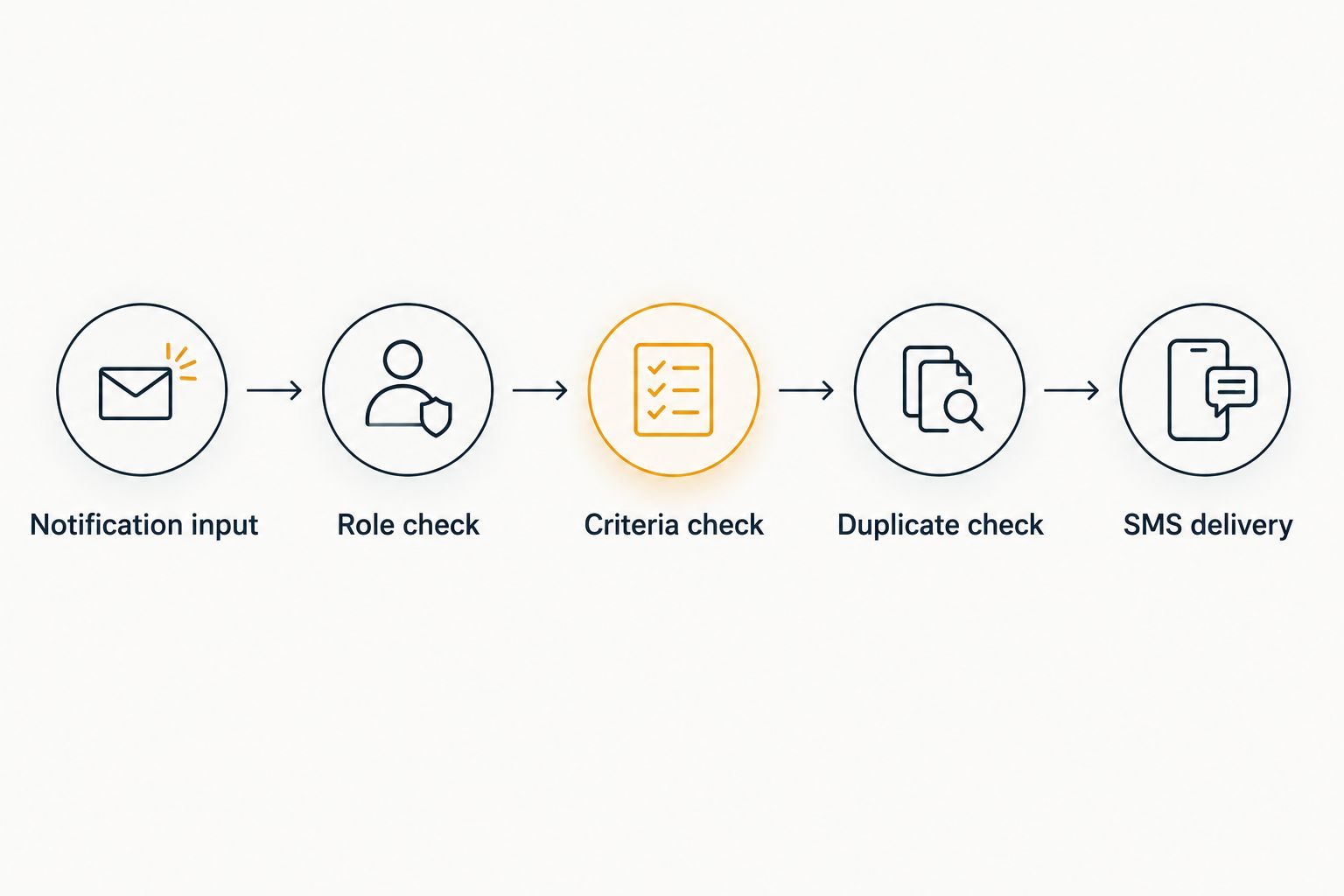
Keep a short rejection reason with each processed record. A role exclusion, missing schedule, and duplicate identifier require different corrections; a single generic failure label hides that distinction.
SMS delivery configuration
The message should explain why the opening reached you. Keep the body focused on information the source actually provides, not conclusions generated from an ambiguous title.
- Connect the SMS sender. Complete the sender's required verification and configure your own recipient number in the supported format. Review its messaging rules before enabling delivery.
- Build the message. Include the role, employer, location or stated work arrangement, matching reason, and supplied listing destination. Omit unknown details rather than manufacturing a complete-looking summary.
- Mark uncertainty explicitly. If your design permits review alerts, identify an unresolved schedule or work arrangement as needing confirmation. Do not write remote confirmed when the description only mentions occasional remote work.
- Run 3 test cases. Submit a matching sample, a nonmatching sample, and a repeat of the matching sample. The matching sample should send once; the rejected and repeated samples should not send.
- Record the delivery outcome. Mark the listing as notified after the sender reports the delivery state your workflow accepts. If the sender supports idempotency, use it to protect retries. Route failures for review instead of silently discarding them.
- Enable the workflow. Retain a way to pause it and inspect recent runs. Test again whenever you change the source format, matching rules, recipient, or sender connection.
Expected result: You receive 1 test text for the matching sample and 0 for each excluded sample. Those are acceptance criteria, not a promise about delivery speed.
For your 2026 search, retain both the source timestamp, when supplied, and your processing timestamp. Neither proves that a recruiter has reviewed your application or that an employer's description is complete.
Second variant: text when a tracked listing changes
A new-opening alert answers whether you have encountered a listing before. An update alert answers whether a tracked listing has changed in a way that matters to your search.
Use this variant only when your authorized source exposes updates or permits retrieving the relevant listing information. A new-job email alone does not establish a reliable update feed.
- Store the last observed values for fields you care about, such as schedule, work arrangement, location, or clinical scope.
- Compare the next authorized record with the stored version using the same listing identifier.
- Ignore cosmetic differences such as capitalization and whitespace.
- Reapply your matching rules when a meaningful field changes.
- Send an update text that identifies the changed field, then store the new version.
Best for: revisiting a known opening after its stated requirements change. The advantage is targeted follow-up; the limitation is dependence on the source exposing meaningful changes.
If your source provides only a digest, take a different route: collect the notification, identify relevant entries where the format supports extraction, and send a review summary. Label it as a digest rather than implying each item triggered an individual new-post alert.
Troubleshooting
The workflow texts nonphysician radiology roles
Tighten the role rule before adding more specialty keywords. Require a physician-role match and inspect the full description; a title containing radiology does not establish physician eligibility. Retest a rejected example after each rule change.
The same opening produces repeat texts
Inspect the stored identifier and the order of operations. Tracking parameters, simultaneous runs, or recording success before a failed send completes can break duplicate handling. Preserve source identity and inspect the sender's result before deciding whether to retry.
A relevant job never produces a text
Trace the record from input through each rule. Check whether the source delivered it, whether parsing extracted it, and which criterion stopped it. Route missing mandatory information to review; do not solve missed alerts by removing every filter.
The automation reports success, but the phone is silent
Distinguish workflow completion from the SMS sender's delivery result. Check recipient formatting, sender verification, messaging restrictions, and the phone's blocked-message settings. Send a controlled test through the sender before rebuilding the job filter.
An old listing appears as a new opening
Compare the baseline, source identifier, and timestamps. A listing newly encountered by your workflow is not automatically newly published. Preserve that distinction in the message and correct your baseline rather than inventing a publication date.
Customize your workflow
Expand coverage only after the basic route passes its tests. Separate permanent, locum tenens, and supplemental-work searches when their acceptance rules differ; mixing them makes a single matching rule harder to audit.
Use a named version for your 2026 criteria, then change one rule at a time. Maintain a review queue for uncertain results and a separate record of contacted employers so an alert does not become an accidental duplicate application.
For discovery before notification setup, read the guide to AI-powered job matching for radiology openings. RadBoard's radiology job search supports finding and saving opportunities; keep notification delivery as a separately tested part of your process.
FAQ
How do I set up radiology job text alerts?
Connect a supported job-notification source to an automation service, apply matching and duplicate rules, and send accepted records through an authorized SMS sender. Test a matching opening, a rejected opening, and a duplicate before enabling the route.
Does saving a radiology job automatically create a text alert?
No: saving a job and configuring SMS delivery are separate actions. Enable notifications only through a channel the source explicitly supports, then verify delivery with a test.
Can I use RadBoard to find jobs for my alert workflow?
RadBoard provides radiology job discovery through aggregated listings, AI-powered search, and swipe-to-save. Use only an explicitly supported notification or automation connection for any text-alert workflow; do not assume search or saving supplies one.
How do I stop duplicate radiology job texts?
Store a stable source listing identifier and check it before sending another new-listing message. Protect simultaneous runs and use the SMS sender's retry safeguards where supported.
Can radiology job alerts match remote work and daytime schedules?
A workflow can check remote work and daytime schedules when the source provides those details. Treat missing or ambiguous wording as a review case rather than a confirmed match.
Will I get a text immediately when a radiology job posts?
Delivery timing depends on the notification source, automation processing, and SMS sender. A workflow cannot guarantee publication-time delivery when its input arrives later.
Can I get a text when a saved job changes?
You can configure update alerts when an authorized source exposes listing changes. Store the prior values, compare meaningful fields, and send a message identifying the change rather than repeating a new-job alert.
One last thing
A text alert proves that a record passed your rules, not that the job satisfies every career requirement. Before responding, read the source description and confirm unresolved call, case-mix, location, and employment terms with the employer. Improve the matching rule whenever that review exposes a recurring mismatch.